

Key Takeaways
Why one tablet can work for an entire household
Buying a separate device for each family member adds up fast. A single tablet with well-configured profiles can serve a toddler watching educational videos in the morning and a parent checking email in the evening, without either session interfering with the other. Before committing to any device purchase, it is worth doing a full inventory of what your household already has. The family tech audit checklist can help you decide whether a shared tablet genuinely covers a gap or duplicates something you already own.
Both Android tablets using Google Family Link and iPads using Screen Time include profile-based controls at no extra cost. The features are comparable enough that the right choice usually comes down to whichever ecosystem your family already uses. Neither platform requires a paid subscription for basic parental controls.
What you will need
Android tablet with Google Family Link
Google Family Link creates supervised child accounts directly within Android settings at no additional cost.
iPadOS Screen Time (built into Settings)
Apple's Screen Time controls app limits, content restrictions, and downtime schedules for each Apple ID on the device.
Google Family Link app (parent device)
Lets a parent approve app downloads and review activity from their own phone without handling the shared tablet.
Step-by-step setup
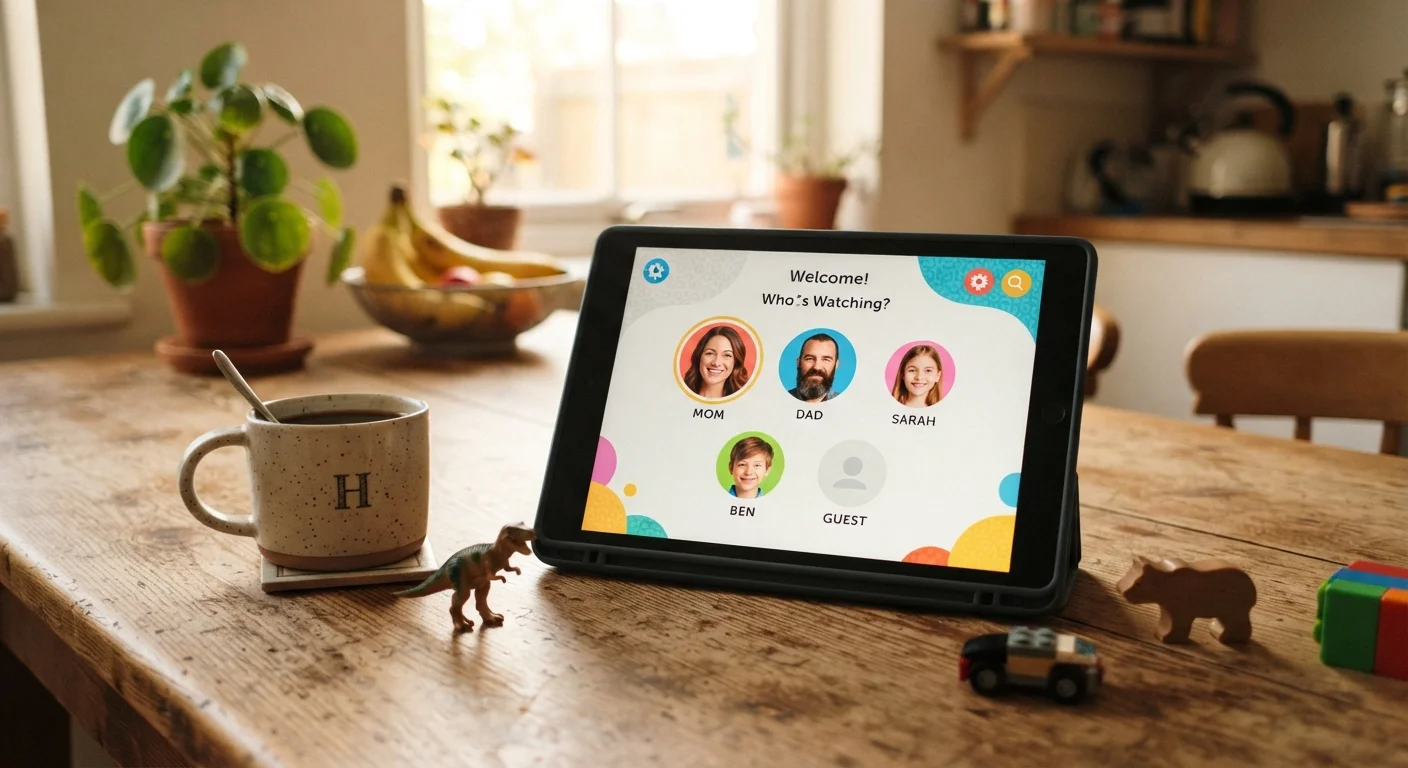
Follow these steps in order. Skipping profile creation and going straight to content filters is the most common mistake: filters applied to the parent account affect everyone unless each child has a separate profile first.
Do not skip the PIN on the parent profile
If the administrator or parent account has no PIN or passcode, any child who figures out how to switch profiles can access unrestricted content and settings. Set a strong PIN immediately after creating the parent profile and do not store it anywhere visible on the device.
Create a parent or administrator profile
On Android, open Settings, then System, then Multiple users. Confirm your Google account is set as the device owner. On iPadOS, the first Apple ID signed in during setup is the administrator. If the tablet was previously a child's device, sign out of any child account first and sign in with the parent Apple ID.
Add a supervised profile for young children (under 13)
On Android, go to Settings, then Digital Wellbeing and parental controls, then Parental controls. Follow the prompts to create a supervised Google account via Family Link. On iPadOS, create a separate Apple ID for the child using the Family Sharing setup under Settings, then your name, then Family Sharing. Both flows are free and built into the operating system.
Set content filters for each child profile
In the Family Link dashboard (Android) or Screen Time settings (iPadOS), set the content rating threshold for apps, movies, and web browsing to match the child's age. For younger children, restrict the browser entirely and allow only approved apps. For older children, you can allow a broader rating range while still blocking explicit content categories. Apply settings per profile so a teen's restrictions do not affect a younger sibling's account.
Configure screen time limits and downtime schedules
Android's Digital Wellbeing and iPadOS Screen Time both let you set daily app-category limits (for example, 45 minutes for games) and a downtime window during which most apps are locked. Set downtime to cover at least one hour before each child's bedtime. Limits apply per profile, so each child gets their own allowance. For research on why this matters, see what current research says about screens and children's sleep.
Block in-app purchases at the store level
In the Google Play Store, open your account menu, go to Settings, then Authentication, and require a password for every purchase. In the Apple App Store, go to Settings, then Screen Time, then Content and Privacy Restrictions, then iTunes and App Store Purchases, and set all purchases to Don't Allow or require the parent passcode. Do this for every profile on the device.
Add a standard profile for older teens or adults
For teenagers or adults who need fewer restrictions, add a standard user profile (Android) or a separate Apple ID through Family Sharing with looser Screen Time settings. Agree on usage rules in advance so the profile setup reflects the actual household agreement rather than creating friction later.
Review and update profiles every few months
Children move through age groups. A content filter appropriate at age 7 will frustrate a 9-year-old and push them toward workarounds. Schedule a short review every three to four months to check whether app limits and content ratings still match each child's age, and adjust accordingly. The same review is a good time to remove apps no one uses, which also reduces app-store clutter across all profiles.
In-app purchases can bypass content settings
Content filters do not automatically block in-app purchases. On both Android and iPadOS, go into the app store settings separately and require password authentication for every purchase, including free downloads. This step is separate from profile setup and easy to miss.
Label each profile clearly at setup
Use names or ages rather than generic labels like 'Child 1' when creating profiles. Clear labels make it faster to update the right profile when a child moves into a new age group, and reduce the chance of editing the wrong account.
Common configuration mistakes and how to avoid them
The most frequent problem is treating one content-filter setting as a household-wide solution. A single filter set for a 6-year-old will block legitimate content a 14-year-old needs for homework. Profile separation prevents this entirely.
Another common issue is forgetting that the tablet's browser operates independently from app-store filters. Restrict or replace the default browser on young children's profiles with a curated kids browser, or disable it entirely through the profile settings.
Families who find a shared tablet still causes friction may want to revisit whether the device was the right purchase to begin with. The common electronics purchases families regret covers the thought patterns behind these decisions and what to watch for before buying.